
How to Make Rolling Credits in After Effects
Create professional rolling credits in After Effects with keyframes, expressions, readable typography, long-list workflows, and reliable rendering.

Adobe After Effects is a strong choice for rolling end credits when the sequence needs custom typography, compositing, or motion design that goes beyond a basic vertical crawl. The same flexibility can make a long credit roll difficult to maintain, however—especially when hundreds of names, department changes, or late approvals are involved.
This guide explains how to prepare an approved credit list, build a readable roll with Position keyframes, use an expression when constant-speed control is useful, manage long compositions, and render the result for an editing or finishing timeline. It also explains where a structured credit platform such as ScrollX can reduce manual list and revision work while After Effects remains the motion-design tool. New to credits? Start with our guide on how to make end credits before you open the timeline.
Quick answer: Can After Effects make rolling credits?
Yes. After Effects can create professional rolling or scrolling credits by moving a text layer, precomposition, or parented group vertically through a composition. It is particularly strong when you need custom motion, typography, compositing, or stylized title treatments. Long lists and frequent revisions become more manual because the credit data and the design often live together in the project. ScrollX is useful when the main challenge is managing approved names, departments, consistency, revisions, and repeat renders; the finished credits can then be brought into After Effects or the finishing edit.
Before You Start: Prepare the Credit List

Do not begin the animation from an unapproved email, call sheet, or pasted list. A polished roll can still be wrong if a name is misspelled, a role is outdated, or negotiated placement has been missed.
Maintain one authoritative source containing:
- each approved screen name, including capitalization and diacritics;
- the exact role or title that should appear;
- the department or section for every credit;
- the approved order of cards, departments, acknowledgements, music, and legal lines;
- any logo or contractual placement requirements;
- unresolved notes and the person responsible for final approval; and
- a version number or date that identifies the current list.
The sequence varies by production, contracts, guild requirements, distributor requirements, and negotiated billing. Use the film credits order guide as a working framework, then have the authorized production owner approve the actual order. The free end credits spreadsheet template provides a structured starting point.
Decide which credits should be static cards and which belong in the continuous roll before laying out the text. Principal cast, production companies, key creatives, or contractual credits may require individual cards. A continuous roll is normally more efficient for the longer department sequence.
How to Create Rolling Credits in After Effects
The workflow below uses terminology from Adobe’s current After Effects documentation. Panel layouts vary by workspace and release, so verify the interface against the version used in your facility before capturing screenshots or training a team.
1. Create a composition for the delivery format
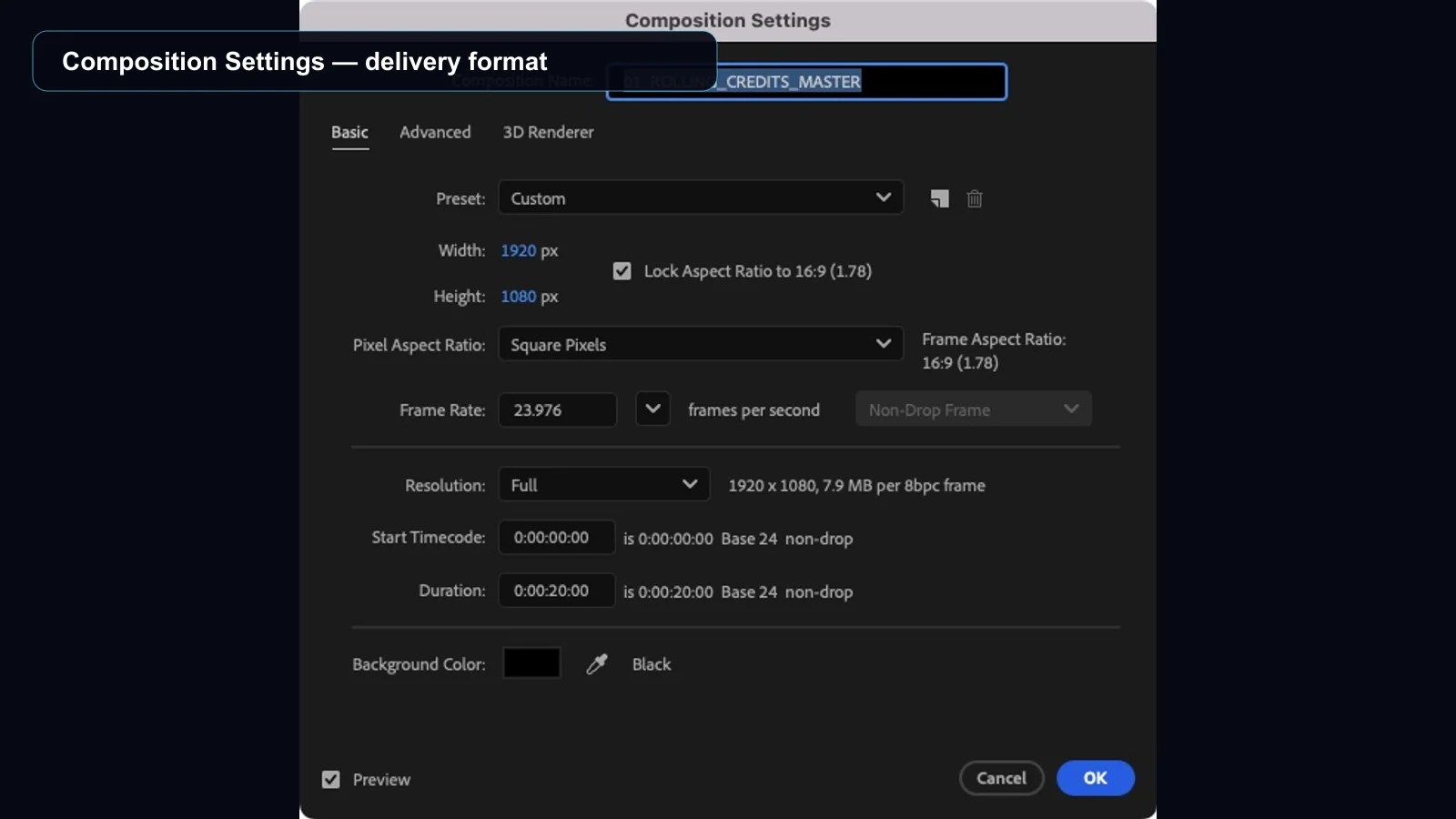
Choose Composition > New Composition and match the required frame size, pixel aspect ratio, and frame rate in Composition Settings. Confirm the project color workflow separately in File > Project Settings > Color. Give the composition enough duration for a first timing pass; it is easier to extend or trim after you can see the complete credit block.
If the credits will be rendered with transparency and placed over picture in an NLE, confirm the required alpha-channel workflow with the finishing team. If the background is part of the design, build and review it in the composition instead of assuming that white-on-black is the only acceptable treatment.
2. Build a clean credit layout

Create a text layer with the Type tool and use the text controls available in the Properties, Character, and Paragraph panels to set the typeface, size, leading, alignment, tracking, fill, and stroke required by the design.
For a short list, one carefully formatted text layer may be sufficient. For departments, two-column role-and-name layouts, logos, or custom cards, separate layers or grouped sections are usually easier to manage. Test the longest approved name and longest role before formatting the complete list. A layout that works for short examples can fail when a wider real entry is added.
Avoid using repeated spaces as a column system. They are fragile when text changes. Use consistent text alignment, separate text layers, or a controlled layout structure that can survive revisions.
3. Organize the roll in a precomposition

For anything beyond a very small sequence, place the credit design in its own precomposition. Keep department headings, names, roles, logos, and any supporting graphics together in that credit-roll precomp, then animate the precomp as one unit in the delivery composition.
A precomp separates layout from final movement and compositing. It also makes it easier to:
- revise a department without disturbing the finishing composition;
- apply one motion treatment to the complete roll;
- reuse or replace the rendered credit element;
- keep background and foreground treatments separate; and
- segment a very long roll into manageable sections when necessary.
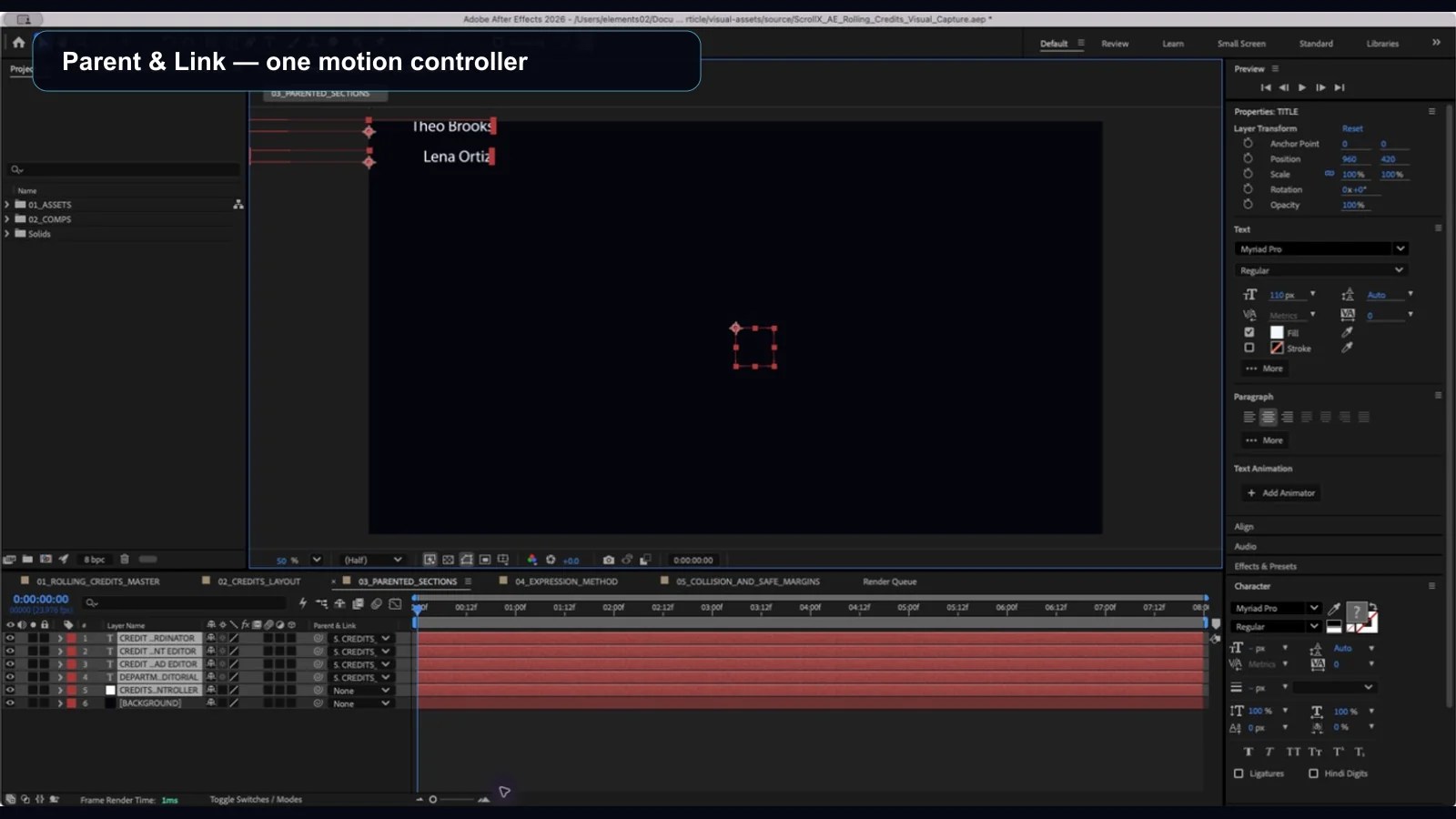
Another workable structure is to parent multiple text and graphic layers to a Null Object using Parent & Link, then animate the null. The principle is the same: the individual credit elements retain their layout, while one parent controls the vertical travel.
4. Set the starting position

Place the complete roll so its first intended line is below the bottom of the visible frame, unless the approved transition calls for a different entrance. Select the layer, precomp, or null that controls the roll and press P to reveal its Position property.
Enable the Position stopwatch at the starting time to create the first keyframe. Check the actual visible boundary of the text, not only the layer’s anchor point or bounding box. Logos, oversize headings, or unusual ascenders and descenders can change where the first readable content enters frame.
5. Set the ending position

Move the current-time indicator to the planned end of the roll. Change the Position Y value until the final intended line has moved above the top of the visible frame. This creates the second Position keyframe.
Preview from before the first line enters until after the last line leaves. Do not judge the movement by dragging the playhead alone. The audience experiences the sequence in real time, and a scroll that looks acceptable while scrubbing can be uncomfortable at normal playback speed.
6. Keep the main roll at a constant speed
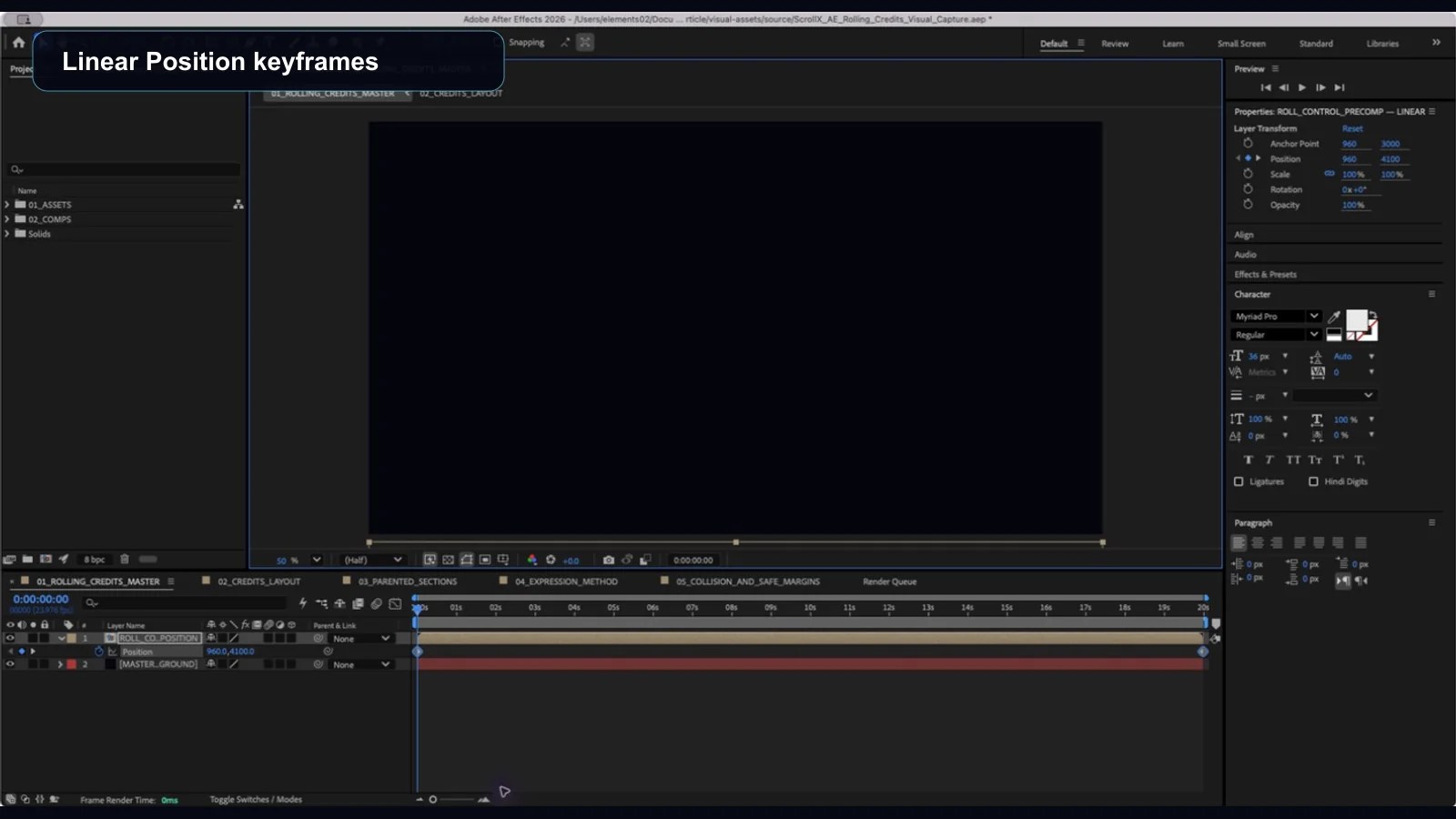
For a conventional continuous roll, constant movement is normally easier to read than acceleration through the body of the credits. Select the two Position keyframes, open Keyframe Interpolation, and use Linear temporal interpolation for the main movement.
If the creative treatment calls for an eased entrance or exit, isolate that transition from the continuous reading section. Do not apply dramatic easing to every department simply because After Effects makes it available. Repeated speed changes can make names harder to follow.
7. Adjust duration to control speed
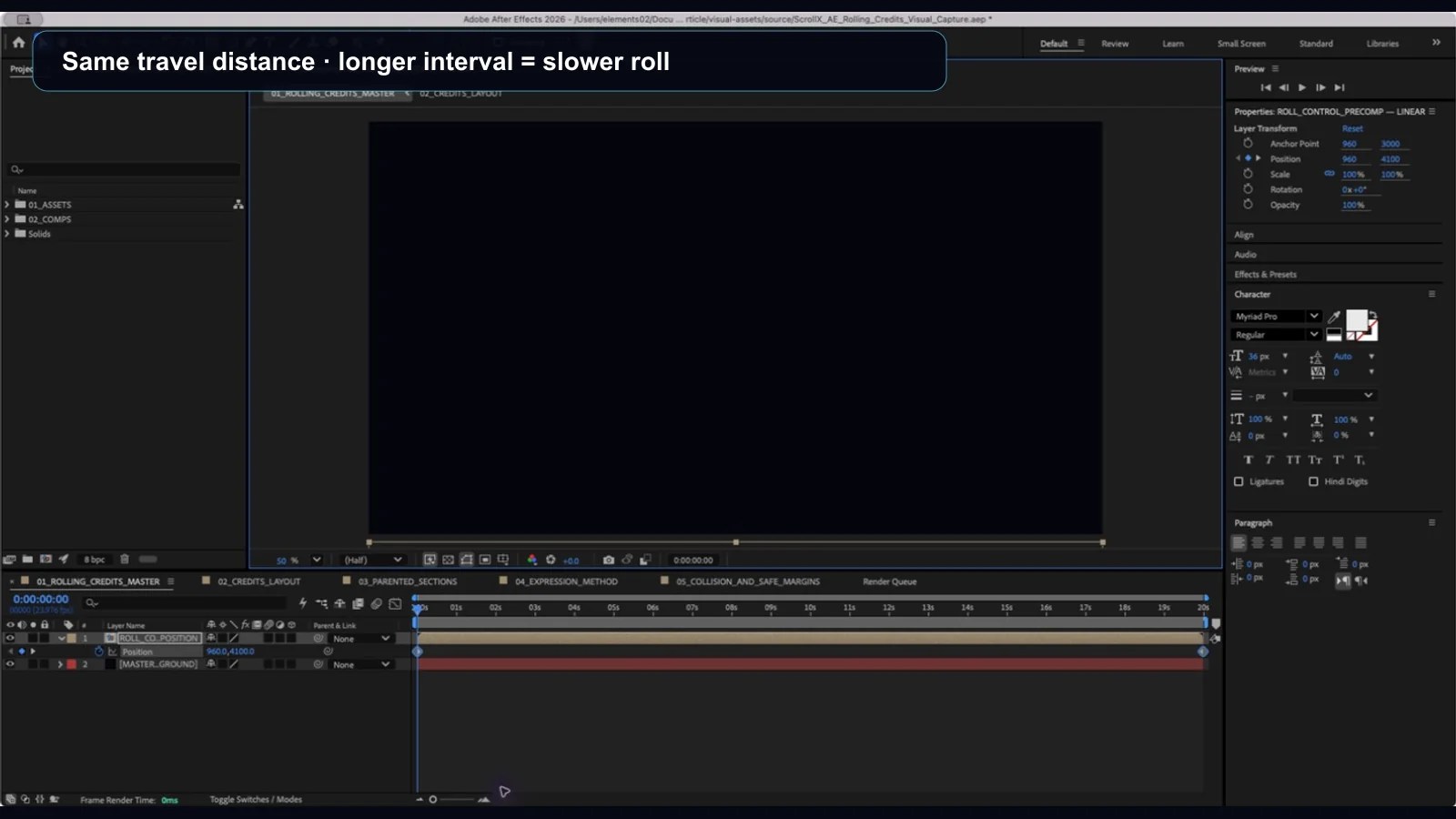
The roll’s speed depends on the total vertical travel divided by the available time. A taller credit block must move farther. If duration stays fixed while the list grows, the roll becomes faster.
To slow the credits, extend the time between the start and end Position keyframes. To make them faster, shorten that interval. Recheck timing whenever the list height, start position, end position, font size, leading, or composition frame rate changes.
There is no universal correct duration. Use the intended display context, delivery specification, type treatment, and real names to judge readability. Ask a reviewer who does not already know the list to read a dense representative section at normal speed.
8. Preview at the delivery frame rate
Preview the roll at the target frame rate and the best representative resolution available. If real-time playback is not reliable, render a representative section before making motion decisions.
Check:
- the first and last visible credits;
- dense departments and long names;
- role-and-name alignment;
- line and department spacing;
- contrast over the busiest background frames;
- title-safe or delivery-specific margins;
- motion quality after scaling or frame-rate conversion; and
- the transition to and from surrounding cards or picture.
9. Render the approved result
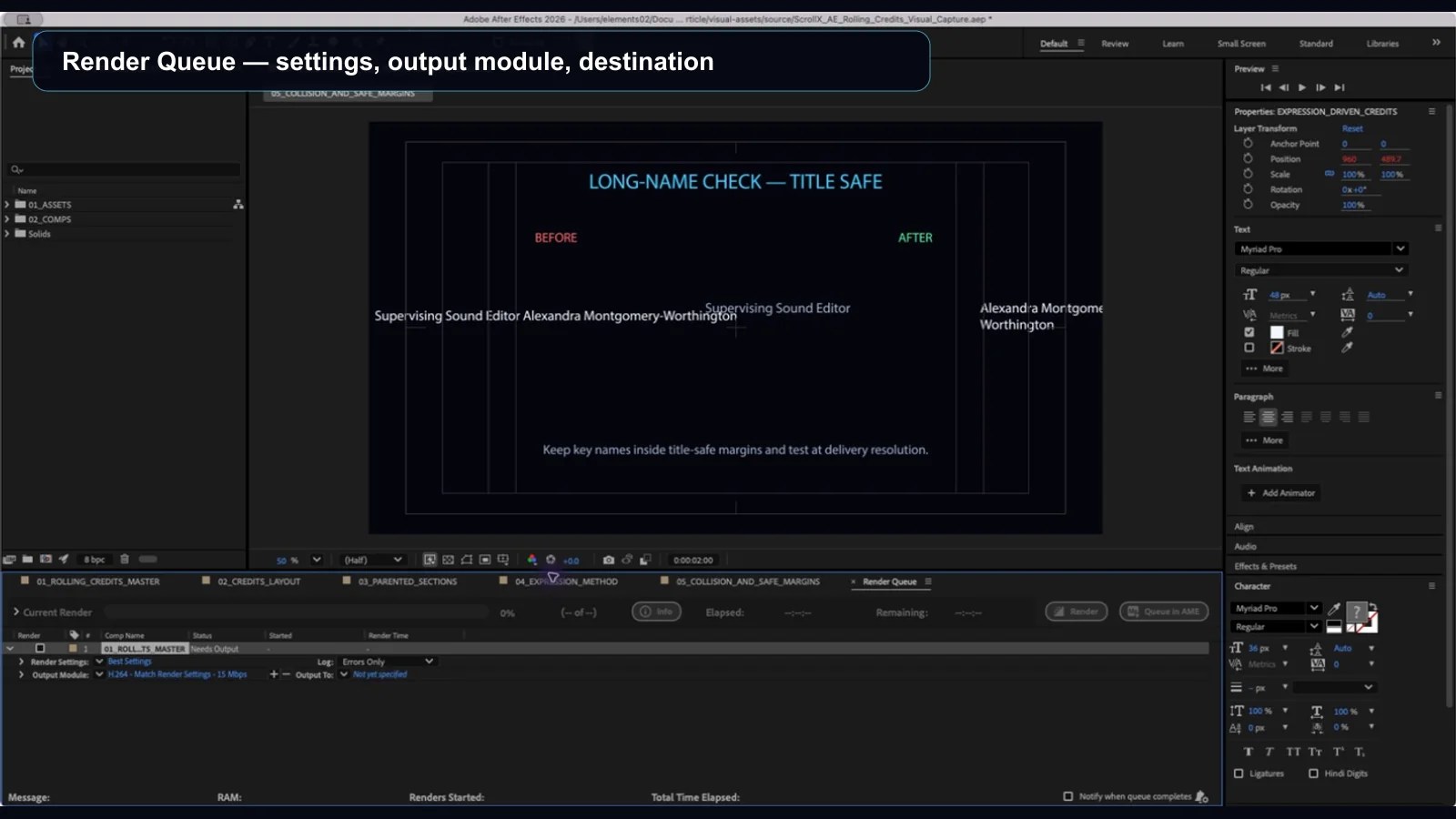
For a high-quality movie, image sequence, or element with an alpha channel, add the composition using Composition > Add To Render Queue. Adobe’s current rendering and exporting guidance identifies the Render Queue as the primary path for high-quality output that will be placed in an NLE or another compositing application. Confirm the Render Settings, Output Module, filename, destination, frame rate, color handling, codec, and alpha interpretation with the finishing team.
Adobe Media Encoder is another option for compressed delivery formats. Do not select a format only because it is familiar: a review file, a transparent intermediate, and a final flattened master have different requirements.
Review the rendered file after it is imported into the actual edit or finishing timeline. A successful After Effects preview is not the final QC pass.
- SourceOne approved credit sheet
- PresentationReview the credit layout and timing
- CompositeBring the rendered credits into After Effects
Use a structured list for names and revisions, then reserve After Effects for the motion treatment your film needs.
Opens ScrollX signup. Start with your own approved credit list.Three Useful After Effects Methods
Method A: Position keyframes
Animate the Position of one text layer, a credit-roll precomp, or a null from below frame to above frame. This is the clearest method for most rolls because the start, end, duration, and movement are visible in the Timeline panel.
Use it when:
- the total list is manageable;
- the duration is approved or easy to revise;
- the motion should be continuous and predictable; and
- an editor or motion designer needs to adjust the start and end visually.
Method B: Expression-driven motion
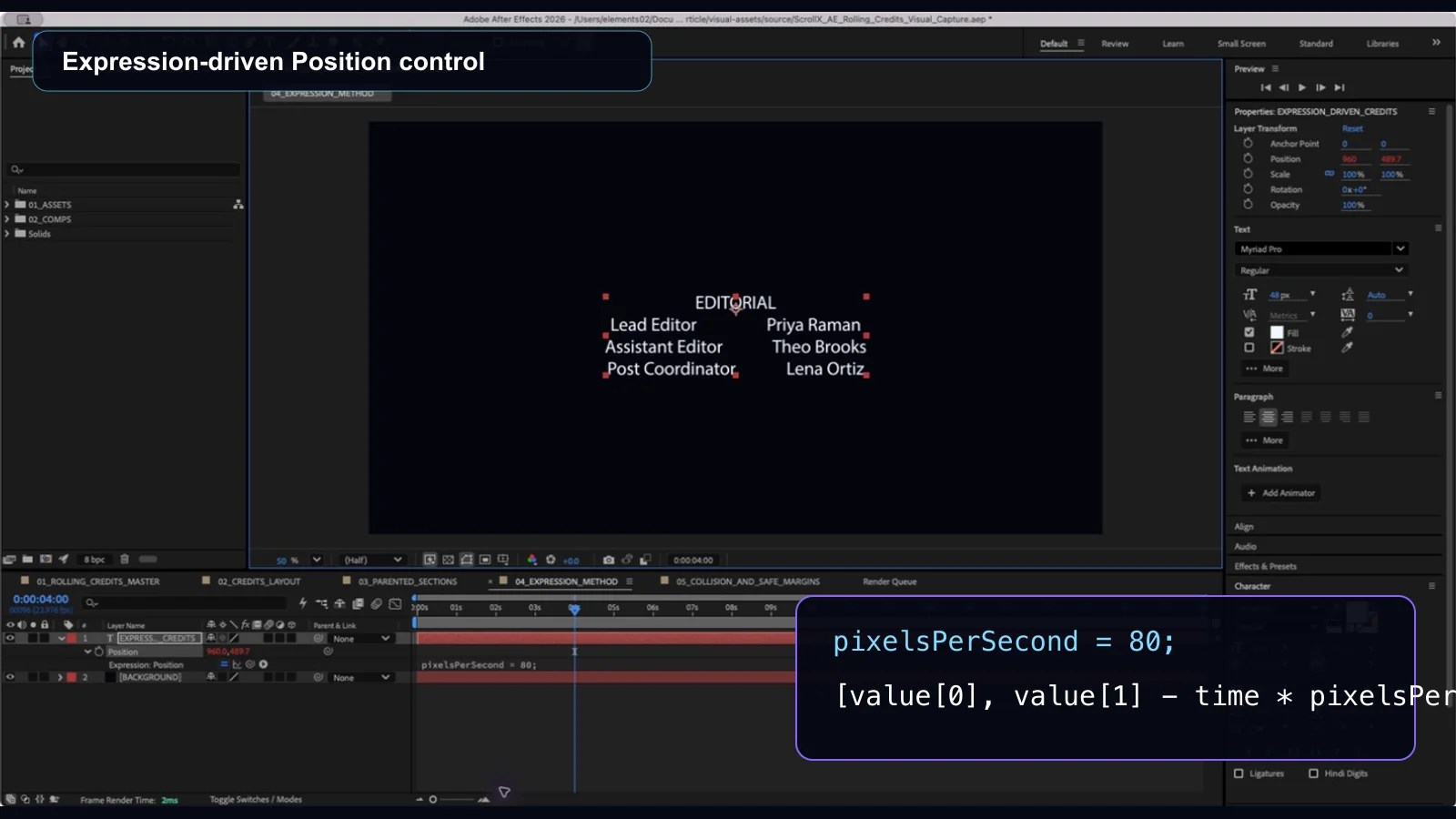
An expression can move a roll at a defined number of pixels per second without relying on a second Position keyframe. Adobe’s current expression examples document the Position-expression workflow. Apply an expression to the controlling layer’s Position property by pressing P, then Alt-clicking on Windows or Option-clicking on macOS on the Position stopwatch.
For example, this expression keeps the current X position and moves upward at a constant rate:
pixelsPerSecond = 80;
[value[0], value[1] - time * pixelsPerSecond]
Change 80 only after testing the real roll at the delivery frame rate. The starting Position value still determines where the roll begins, and the composition duration determines how much of the list completes. Because time is composition time, use (time - inPoint) instead of time if the motion should begin at a later layer in-point rather than at composition time zero.
Expressions are useful when constant speed is the main control or when several versions should share one rate. They are less transparent to occasional After Effects users and can create handoff risk if the project is not documented. A motion designer should validate the expression, start position, duration, and render behavior before production use.
For a pixel-per-frame treatment, an expression can use frame-based movement, but this is not a universal cure for judder. Integer movement, frame rate, display refresh, type size, and perceived speed interact. Test the delivered result instead of relying on a formula alone.
Method C: Structured precomps and parented sections
Build departments or sections in separate precomps, arrange them into one master credit precomp, and animate the master. Alternatively, parent the sections to one null and animate that parent.
This approach is useful when:
- the roll includes department-specific design treatments;
- logos or graphic elements appear between text sections;
- several people are responsible for different sections;
- the project needs alternate regional or contractual versions; or
- the sequence is too long to maintain comfortably as one text layer.
The tradeoff is project complexity. Use clear naming, version labels, and a documented source list so that a late correction is made in the right place.
Controlling Speed and Duration
A simple planning relationship is:
average speed = total vertical travel ÷ roll duration
The total travel is not merely the height of the visible frame. It includes the credit block, the starting offset below frame, the ending offset above frame, and any intentional gaps or cards included in the same moving element.
If the list gains several departments, one or more of the following must change:
- the roll becomes longer;
- the average speed increases;
- typography or spacing becomes more compact;
- the sequence is divided into sections; or
- some material moves to cards or another treatment.
Do not reduce type size or spacing until the roll fits without evaluating readability. A technically complete roll is not successful if viewers cannot follow it.
Typography and Motion Design
After Effects is most valuable when the credit sequence needs a designed visual system rather than a generic crawl.
Choose type that remains clear in motion
Use a typeface with clear letterforms at the intended size and resolution. Thin strokes, tight counters, ornate details, and aggressive compression may look elegant on a still frame but fail while moving. Test accented characters, mixed capitalization, long surnames, and the smallest legal lines.
Establish hierarchy without visual noise
Department headings, roles, names, acknowledgements, and legal lines should not compete equally. Use restrained changes in size, weight, spacing, alignment, or case to show structure. Viewers should be able to identify a new department without waiting for the roll to stop.
The film end credits format guide explains cards, department structure, typography, and delivery considerations. The annotated short-film example shows how a fictional list moves from top-billed cards into a concise roll.
Use custom animation selectively
Text animators and selectors can animate properties within a text layer, including Position, Opacity, Scale, Tracking, and other character-level properties. They are useful for designed headings, reveals, fades, or bespoke cards. They are rarely necessary for every line in a long continuous roll.
Keep the reading section stable. A subtle entrance, opacity treatment, or department transition can support the design; per-character movement on every name can compete with the information.
Treat motion blur as a creative and technical choice
Adobe documents motion blur as one way to smooth animated text, but it is not automatically correct for every credit roll. Motion blur can soften strobing in some treatments and reduce letter clarity in others. Compare enabled and disabled renders at delivery settings.
Design the background with the type
If credits appear over picture, test the brightest, darkest, and busiest underlying frames. A gradient, controlled plate, shadow, outline, or composited treatment may be necessary to preserve contrast. Check the result after the final color pipeline, not only in the working composition.
Respect actual safe-margin requirements

Use guides that match the broadcaster, platform, distributor, or client specification. Do not assume one universal safe-area percentage. Check long names, two-column layouts, and logos against the approved delivery frame.
Common After Effects Credit Problems

| Problem | Likely cause | Practical fix |
|---|---|---|
| The roll starts or ends in the wrong place | The layer bounds, anchor point, or start/end Position values do not reflect the first and last visible content | Check the actual visible lines at the first and last frames; adjust the controlling layer or precomp Position |
| Credits move too fast | The travel distance is too large for the keyframe interval or composition duration | Extend the interval between Position keyframes or increase the composition duration |
| Credits move too slowly | The keyframe interval is longer than the sequence requires | Shorten the interval carefully and recheck dense departments |
| Speed changes through the body of the roll | Keyframes use eased or non-linear temporal interpolation | Set the continuous reading movement to Linear; isolate intentional easing at the entrance or exit |
| Motion looks uneven | Preview performance, fractional movement, frame-rate conversion, scaling, or display cadence is affecting perception | Render a representative section at delivery settings; evaluate motion blur or a tested frame-based expression only when appropriate |
| Names or roles are clipped | Text bounds, paragraph box, masks, precomp dimensions, or columns are too narrow | Test the longest entries and inspect every precomp boundary before rendering |
| Spacing breaks after a revision | Manual spaces, tabs, or one-off line breaks are acting as layout controls | Rebuild the affected section with consistent layers, alignment, leading, and spacing rules |
| A long layer is difficult to edit | The full list is one unstructured text block | Separate departments or sections, use precomps, and retain one external approved source list |
| A correction requires changes in several places | The same name or style is duplicated across comps or versions | Correct the source of truth first, identify every derived version, and use deliberate version naming |
| Render time is unnecessarily high | Heavy effects, oversized comps, unnecessary 3D/motion blur, or repeated processing is applied to the full roll | Pre-render stable elements, restrict effects to where they add value, and test a representative segment before the final render |
| The sequence feels busy or unreadable | Too many animated properties compete with the text | Simplify the continuous roll and reserve bespoke motion for cards, headings, or transitions |
Managing Large Credit Lists and Revisions
A stylized title card and a feature-length roll are different production problems. With dozens or hundreds of names, the risk moves from “Can this text animate?” to “Can the production prove that the correct approved list was rendered?”
Late changes commonly include:
- spelling, capitalization, or diacritic corrections;
- updated role descriptions;
- people moving between departments;
- contractual placement changes;
- added music, legal, or acknowledgement lines;
- removal of duplicate credits;
- revisions that change column width or total list height; and
- multiple regional, language, or delivery versions.
Keep the approved data separate from the After Effects presentation. Log changes in the authoritative sheet, identify the affected layout, update the roll, and recheck both timing and design. A small spelling correction may alter a line’s width; an added department changes the total travel distance and may change the speed.
Where ScrollX Fits

ScrollX is a professional end-credit creation platform built around structured credit data. It is designed for editors, assistant editors, post supervisors, post coordinators, motion designers, and finishing teams working with large lists, frequent revisions, and repeated renders.
A typical workflow is:
- Credit sheet — collect and approve names, roles, departments, acknowledgements, music, and required legal lines.
- Sync or import — bring the structured list into the credit workflow.
- Format and style — apply consistent hierarchy, spacing, and layout.
- Preview — review the complete roll for accuracy, pacing, and collisions.
- Render — create an approved credit output.
- Finish in post — bring the finished output into After Effects, Premiere Pro, or another editing and finishing system.
The professional rolling credits generator is especially relevant when the production needs repeatable movement, structured departments, or frequent list changes. After Effects remains the stronger choice when the main requirement is custom motion design, complex compositing, or a bespoke title treatment. Many professional workflows can use both.
After Effects vs ScrollX: When to Use Each
| Workflow situation | After Effects | ScrollX |
|---|---|---|
| Highly custom motion design | Strong choice for bespoke animation and compositing | Not the primary purpose |
| Simple one-off credits | Works well when the list is manageable | Also possible, but may be more workflow than needed |
| Hundreds of names | Possible, but data and layout management become more manual | Structured credit-data workflow |
| Frequent revisions | Every change may require text, layout, timing, and version checks | Designed for revision-heavy credit workflows |
| Spreadsheet-based approvals | The approved list must be transferred and checked against the project | Structured credit-sheet data is part of the workflow |
| Complex character or card animation | Strong control with text animators, keyframes, expressions, and compositing | Limited compared with a motion-design application |
| Repeat renders and versions | More hands-on project and output management | Designed for repeat outputs from revised data |
| Final motion-design assembly | Core After Effects responsibility when AE is the finishing context | Finished credits can be brought into the post-production pipeline |
Neither tool is the universal winner. Use After Effects when the sequence’s main challenge is design and motion. Use ScrollX when the main challenge is credit-list scale, approval, consistency, and revision control. Use both when structured data needs a bespoke motion-design finish.
For an NLE-specific alternative, see How to Make Rolling Credits in Premiere Pro. That guide covers Premiere’s built-in Roll workflow and editorial finishing rather than After Effects motion design.
Final Pre-Render Checklist

- Every name, role, department, and diacritic matches the approved source.
- Cards, department order, music, acknowledgements, legal lines, and logos are approved.
- The current project references the latest dated or versioned credit list.
- The longest names and roles fit without collisions or unintended wrapping.
- Font, hierarchy, leading, spacing, columns, and alignment remain consistent.
- The continuous reading section uses intentional, readable motion.
- Any easing, fades, text animators, or custom transitions support rather than obstruct reading.
- Safe margins and background contrast match the delivery context.
- Composition frame size, frame rate, duration, color workflow, and alpha requirements are correct.
- A representative section has been rendered when preview performance could mislead motion judgment.
- The complete roll has been watched at normal speed from first entrance to final exit.
- The rendered file has been checked after import into the final edit or finishing timeline.
Answers to Common Questions
Can After Effects create rolling credits?
Yes. Animate the Position of a text layer, precomposition, or parented group from below the frame to above it. After Effects is particularly useful when the credits need custom typography, compositing, or stylized motion.
Is After Effects better than Premiere Pro for end credits?
It depends on the job. After Effects provides deeper motion-design, text-animation, and compositing control. Premiere Pro is often faster for a straightforward roll assembled directly in an edit. For structured lists and frequent revisions, ScrollX can prepare and render the credit element before it is placed in either application.
What is the easiest way to animate long end credits?
Prepare one approved list, organize it by department, build the layout in a dedicated precomp, and animate that precomp with two Linear Position keyframes. For very large or frequently revised lists, use a structured credit-data workflow rather than treating the After Effects project as the only source of truth.
How do you slow down rolling credits in After Effects?
Increase the time between the starting and ending Position keyframes, or reduce the pixels-per-second value if the motion is expression-driven. Recheck the complete roll whenever the text height or start/end positions change.
What is the best way to manage hundreds of credit names?
Maintain an approved external credit sheet with names, roles, departments, order, and revision status. Use After Effects for the motion design, but keep the source data separate. A platform such as ScrollX can manage structured credit data, revisions, consistency, and repeat renders.
Can I create end credits from a spreadsheet?
Yes. A spreadsheet can be the approved source for names, roles, departments, and sequence. In a manual After Effects workflow, the text must still be transferred, formatted, and checked. ScrollX uses structured credit-sheet data as part of a specialized end-credit workflow before the finished output is brought into post-production.
Related reading: motion graphics in film end credits.
YOUR NEXT STEP
Keep the credit list separate from the compositionUse a structured list for names and revisions, then reserve After Effects for the motion treatment your film needs.
Prepare your credit sequence